Shopify is one of the most popular ecommerce platforms, and it's no surprise that many businesses rely on it to manage their online store. With its user-friendly interface, a wide range of features, and a large selection of apps and themes, Shopify is a great choice for businesses of all sizes.
However, as with any software, you may need to contact customer service for help. Whether you're experiencing technical difficulties, have a billing question, or need guidance on using certain features, Shopify has an extensive knowledge base of self-service guides.
Key Takeaways
Live chat is the fastest way to reach a human. It’s available 24/7 on every plan through the Shopify Help Center, and you won't need a phone call for most issues.
You must log in first. Shopify ties support to your account, so answers and access can be personalized to your specific store.
Phone support isn’t universal. It’s reserved for Shopify Plus, Retail plan, and POS Pro merchants. Standard plans rely on the chat and Help Center.
Contact methods at a glance
Shopify offers several distinct paths to support, and the fastest one depends on your plan and how urgent the issue is. A billing question you can wait on and a suspected account compromise don't belong on the same track.
So, before walking through the exact steps, it's worth seeing how the main channels stack up — what each one requires, how fast it typically responds, and which situations it's built for.
Channel
Where to Start
Availability
Requirements
Typical Response
Best For
Live Chat
"Chat with a human" in Help Center
24/7, all plans
Login + store selection
Immediate, queue varies
Most issues
Phone Support
Help Center, after login (Plus/Retail/POS Pro only)
24/7 for Plus; business hours vary by plan
Shopify Plus, Retail, or POS Pro Plan
Immediate to short hold
Urgent, complex, or high-GMV store issues
Email/Ticket
Offered by an advisor mid-chat for complex cases
N/A (async)
Login
Typically 48 hours (Plus)
Non-urgent issues needing investigation
Community Forum
community.shopify.com
Always open, peer-monitored
None
Varies, not guaranteed
How-to questions, precedent from other merchants
Can't Log In Form
help.shopify.com/en/contact/login-issue
24/7
None (identity verification instead)
Varies
Lockouts, 2FA issues, suspected compromise
Before you start a chat or any conversation, make sure you have the following:
Your store URL (the myshopify.com domain or connected custom domain)
The email address on your Shopify account
Billing details (if it’s a billing or subscription question)
The relevant order ID (if it’s an order, fulfillment, or customer issue)
How to contact Shopify customer service
The table above shows how your options compare, but most merchants end up taking the same route regardless of the issue: everything starts in the Help Center.
Rather than repeating which channel to pick, here's exactly what that process looks like in practice:
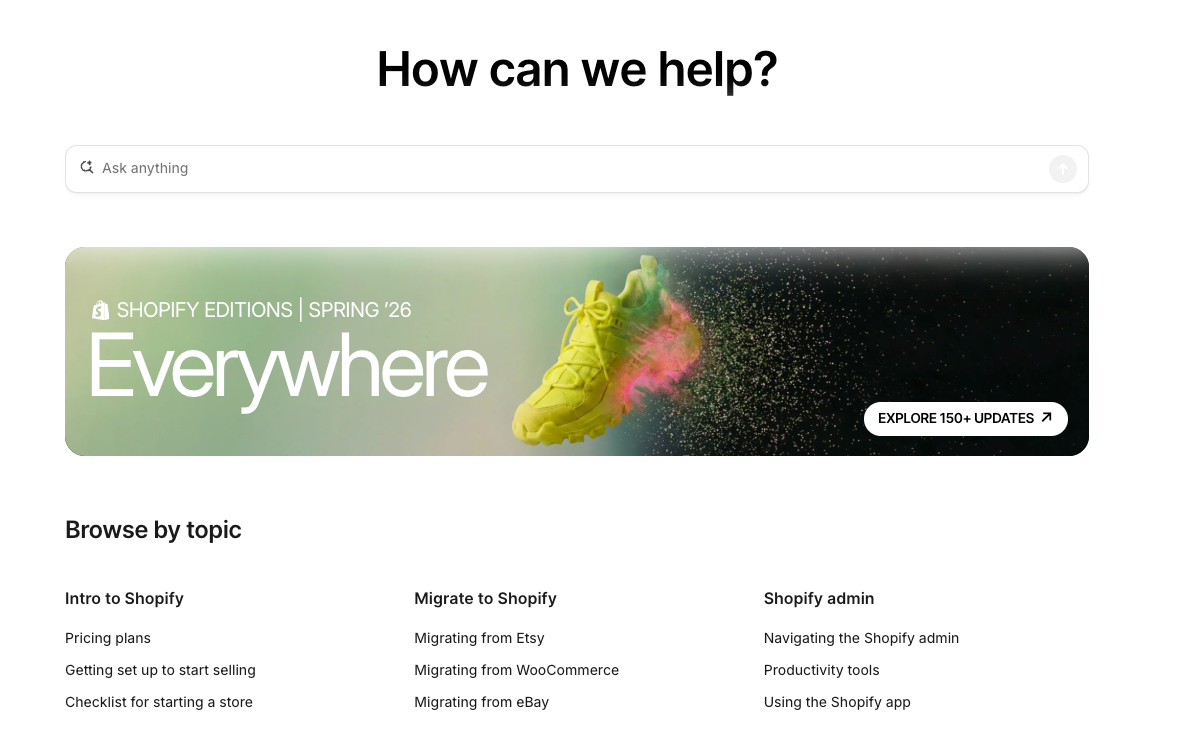
Go to the Shopify Help Center and click Log in, then select the store you need help with. Shopify requires this to personalize answers and access your account.
Type your question into the AI Search bar at the top. It surfaces relevant Help Center articles, such as getting started, migrating to Shopify, using the Shopify admin, and billing or staff-account questions. Many issues resolve here without escalating further.
If the articles don't solve it, click Chat with a human in the bottom-right corner (or ask AI Search to connect you to an advisor). Confirm the affected store, and you'll be placed in a live queue with an estimated wait time.
If you can't log in at all, use Shopify's dedicated Can't log in form rather than the general search, as it’ll route you faster for access issues.
Shopify customer service chat
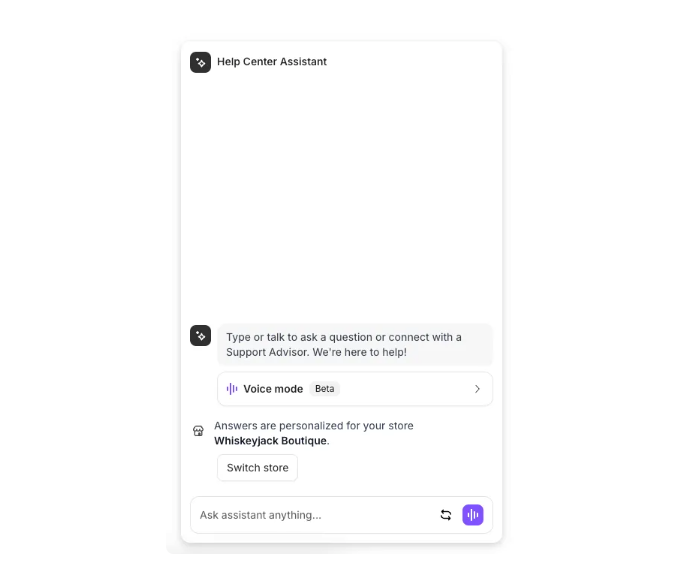
If you’ve exhausted your ability to find an answer to your question in the Help Center, you can start a chat with the Help Center Assistant on the right-hand side of the page:
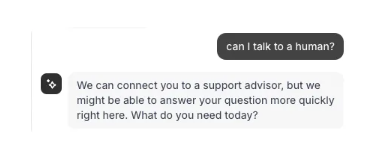
This AI chatbot will provide resources based on your inquiry, which may also provide the solution to your problem. If not, you can ask to speak to a human, or click Chat with a human directly.
The chatbot will continue offering self-serve answers first, but asking for a Support Advisor moves you into the live queue. Human chat is available 24/7 across every Shopify plan, so you will reach a real person. Queue time is the only variable.
Shopify Community
If none of the above helps, you can always browse the Shopify Community. Chances are quite high you’re not the first person to experience your current problem, and a quick search of the Shopify Community will provide answers from experienced Shopify users as well as Shopify staff.
One caveat: don’t use the Community forum to report a hacked store, fraud, or an account takeover. It’s public and peer-to-peer. Shopify can’t verify or act on account-security claims there. For those, use live chat or the Can’t log in form instead.
Decision flow for common issues
Not every issue deserves the same amount of legwork before you escalate. The five scenarios below are the ones merchants run into most, each broken into a quick self-serve check, the point where it’s worth going straight to a human, and a ready-to-use prompt so you’re not stuck explaining the situation from scratch when you get there.
Billing or an unexpected charge. Search "billing" in Help Center → if unresolved, chat with a human. Prompt: "I have a billing question about a charge on my store. Can you review my most recent invoice?"
Locked out or can’t log in. Use the Can't log in form directly. Prompt (if chat opens first): "I can't access my account and need identity verification to regain access."
Suspected hacked store. Don’t post in Community → go straight to chat, or the Can't log in form. Prompt: "I believe my store has been compromised, and I need urgent account security help."
Refund, chargeback, or dispute. Search "chargeback" or "dispute" in Help Center first → escalate to chat if the timeline is urgent. Prompt: "I received a chargeback/dispute notice and need help responding before the deadline."
App or theme issue. Check the app or theme's own support first (many are third-party) → Shopify chat only if it's a platform-level bug. Prompt: "I'm seeing [error] after installing [app/theme]. Is this a known platform issue?"
Running a Shopify store? Turn your data into better decisions
Getting help from Shopify is one thing. Understanding what’s driving revenue, customer retention, marketing performance, and profitability across your store is another.
Triple Whale helps ecommerce teams bring their Shopify, marketing, customer, and business data into one place. With trusted measurement and Moby, Triple Whale's AI operator for ecommerce, teams can identify what is working, investigate performance changes, and move from insight to action faster.
If you want a clearer view of your ecommerce performance and what to do next, see how Triple Whale works and book a demo today.
You can reach Shopify support through the Shopify Help Center, where you can search for answers or start a chat with the Help Center Assistant. You’ll need to be logged into your Shopify account to access personalized support.
Can I speak to a real person at Shopify?
Yes, though it takes a bit of persistence. After starting a chat with the AI assistant, you can ask to speak with a Support Advisor to reach a live human.
Is there a trick to reaching a human faster?
Asking about a billing issue tends to get you connected to a real Support Advisor more quickly than other types of inquiries.
Component Sales
5.32K
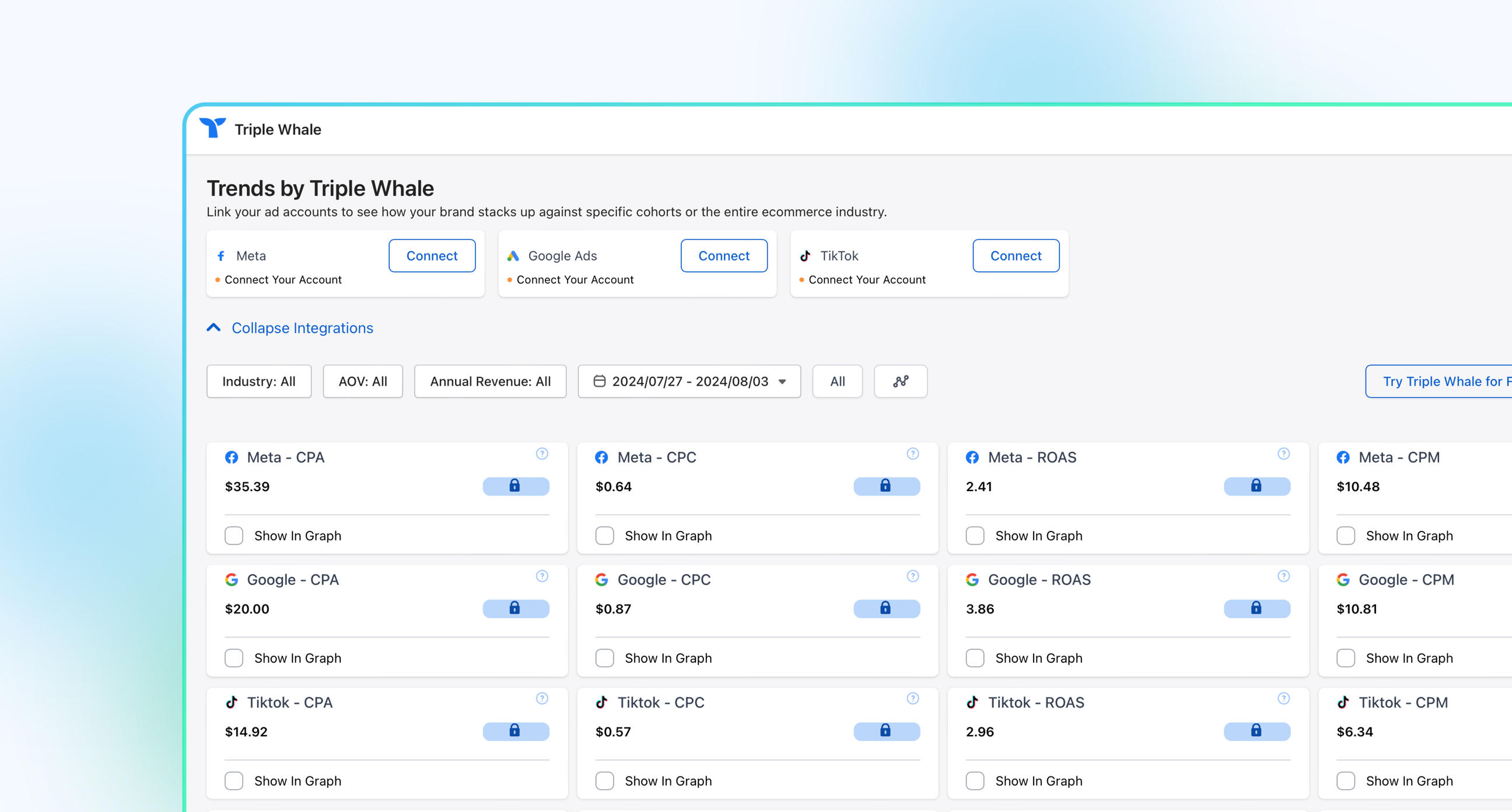
Benchmark your ecommerce brand against industry leaders
Shopify is one of the most popular ecommerce platforms, and it's no surprise that many businesses rely on it to manage their online store. With its user-friendly interface, a wide range of features, and a large selection of apps and themes, Shopify is a great choice for businesses of all sizes.
However, as with any software, you may need to contact customer service for help. Whether you're experiencing technical difficulties, have a billing question, or need guidance on using certain features, Shopify has an extensive knowledge base of self-service guides.
Key Takeaways
Live chat is the fastest way to reach a human. It’s available 24/7 on every plan through the Shopify Help Center, and you won't need a phone call for most issues.
You must log in first. Shopify ties support to your account, so answers and access can be personalized to your specific store.
Phone support isn’t universal. It’s reserved for Shopify Plus, Retail plan, and POS Pro merchants. Standard plans rely on the chat and Help Center.
Contact methods at a glance
Shopify offers several distinct paths to support, and the fastest one depends on your plan and how urgent the issue is. A billing question you can wait on and a suspected account compromise don't belong on the same track.
So, before walking through the exact steps, it's worth seeing how the main channels stack up — what each one requires, how fast it typically responds, and which situations it's built for.
Channel
Where to Start
Availability
Requirements
Typical Response
Best For
Live Chat
"Chat with a human" in Help Center
24/7, all plans
Login + store selection
Immediate, queue varies
Most issues
Phone Support
Help Center, after login (Plus/Retail/POS Pro only)
24/7 for Plus; business hours vary by plan
Shopify Plus, Retail, or POS Pro Plan
Immediate to short hold
Urgent, complex, or high-GMV store issues
Email/Ticket
Offered by an advisor mid-chat for complex cases
N/A (async)
Login
Typically 48 hours (Plus)
Non-urgent issues needing investigation
Community Forum
community.shopify.com
Always open, peer-monitored
None
Varies, not guaranteed
How-to questions, precedent from other merchants
Can't Log In Form
help.shopify.com/en/contact/login-issue
24/7
None (identity verification instead)
Varies
Lockouts, 2FA issues, suspected compromise
Before you start a chat or any conversation, make sure you have the following:
Your store URL (the myshopify.com domain or connected custom domain)
The email address on your Shopify account
Billing details (if it’s a billing or subscription question)
The relevant order ID (if it’s an order, fulfillment, or customer issue)
How to contact Shopify customer service
The table above shows how your options compare, but most merchants end up taking the same route regardless of the issue: everything starts in the Help Center.
Rather than repeating which channel to pick, here's exactly what that process looks like in practice:
Go to the Shopify Help Center and click Log in, then select the store you need help with. Shopify requires this to personalize answers and access your account.
Type your question into the AI Search bar at the top. It surfaces relevant Help Center articles, such as getting started, migrating to Shopify, using the Shopify admin, and billing or staff-account questions. Many issues resolve here without escalating further.
If the articles don't solve it, click Chat with a human in the bottom-right corner (or ask AI Search to connect you to an advisor). Confirm the affected store, and you'll be placed in a live queue with an estimated wait time.
If you can't log in at all, use Shopify's dedicated Can't log in form rather than the general search, as it’ll route you faster for access issues.
Shopify customer service chat
If you’ve exhausted your ability to find an answer to your question in the Help Center, you can start a chat with the Help Center Assistant on the right-hand side of the page:
This AI chatbot will provide resources based on your inquiry, which may also provide the solution to your problem. If not, you can ask to speak to a human, or click Chat with a human directly.
The chatbot will continue offering self-serve answers first, but asking for a Support Advisor moves you into the live queue. Human chat is available 24/7 across every Shopify plan, so you will reach a real person. Queue time is the only variable.
Shopify Community
If none of the above helps, you can always browse the Shopify Community. Chances are quite high you’re not the first person to experience your current problem, and a quick search of the Shopify Community will provide answers from experienced Shopify users as well as Shopify staff.
One caveat: don’t use the Community forum to report a hacked store, fraud, or an account takeover. It’s public and peer-to-peer. Shopify can’t verify or act on account-security claims there. For those, use live chat or the Can’t log in form instead.
Decision flow for common issues
Not every issue deserves the same amount of legwork before you escalate. The five scenarios below are the ones merchants run into most, each broken into a quick self-serve check, the point where it’s worth going straight to a human, and a ready-to-use prompt so you’re not stuck explaining the situation from scratch when you get there.
Billing or an unexpected charge. Search "billing" in Help Center → if unresolved, chat with a human. Prompt: "I have a billing question about a charge on my store. Can you review my most recent invoice?"
Locked out or can’t log in. Use the Can't log in form directly. Prompt (if chat opens first): "I can't access my account and need identity verification to regain access."
Suspected hacked store. Don’t post in Community → go straight to chat, or the Can't log in form. Prompt: "I believe my store has been compromised, and I need urgent account security help."
Refund, chargeback, or dispute. Search "chargeback" or "dispute" in Help Center first → escalate to chat if the timeline is urgent. Prompt: "I received a chargeback/dispute notice and need help responding before the deadline."
App or theme issue. Check the app or theme's own support first (many are third-party) → Shopify chat only if it's a platform-level bug. Prompt: "I'm seeing [error] after installing [app/theme]. Is this a known platform issue?"
Running a Shopify store? Turn your data into better decisions
Getting help from Shopify is one thing. Understanding what’s driving revenue, customer retention, marketing performance, and profitability across your store is another.
Triple Whale helps ecommerce teams bring their Shopify, marketing, customer, and business data into one place. With trusted measurement and Moby, Triple Whale's AI operator for ecommerce, teams can identify what is working, investigate performance changes, and move from insight to action faster.
If you want a clearer view of your ecommerce performance and what to do next, see how Triple Whale works and book a demo today.
You can reach Shopify support through the Shopify Help Center, where you can search for answers or start a chat with the Help Center Assistant. You’ll need to be logged into your Shopify account to access personalized support.
Can I speak to a real person at Shopify?
Yes, though it takes a bit of persistence. After starting a chat with the AI assistant, you can ask to speak with a Support Advisor to reach a live human.
Is there a trick to reaching a human faster?
Asking about a billing issue tends to get you connected to a real Support Advisor more quickly than other types of inquiries.
Share
Emily Kordys
Emily is a Content Writer at Triple Whale, where she creates data-driven content for ecommerce marketers. She has spent nearly a decade in content marketing across the B2B SaaS and ecommerce industries, helping brands turn complex topics into engaging, actionable content.
Body Copy: The following benchmarks compare advertising metrics from April 1-17 to the previous period. Considering President Trump first unveiled his tariffs on April 2, the timing corresponds with potential changes in advertising behavior among ecommerce brands (though it isn’t necessarily correlated).


 Moby AIAsk questions, analyze performance, and work with your business context.
 ActionsTake governed action across the tools that run your business.
 AutomationsSchedule recurring analysis and work that runs on your terms.
 Landing PagesCreative conversion-focused ecommerce pages with Moby.
 Creative StudioGenerate and refine creative grounded in your brand.
















.webp)

.webp)
